

When running an ASIC miner, two numbers tell you almost everything about the health of your machine:
Fan speed and temperature.
Many mining problems don’t appear suddenly. They start with small changes in these two metrics. By watching them regularly, miners can detect issues early and avoid downtime.
At IceRiver EU, stable operation is built on consistent monitoring. A simple daily check of fan speed and temperature can protect both hardware lifespan and mining profitability.
Let’s look at what these numbers actually mean.
Why Fan Speed Matters
Fans control airflow through the miner, removing heat from the hashboards.
When temperature increases, the miner automatically increases fan speed to compensate.
Normal fan behavior:
- Stable RPM during normal operation
- Gradual increases when ambient temperature rises
- Short spikes during startup or heavy load
Fan speed is essentially the miner’s cooling response system.
Typical Fan Speed Ranges
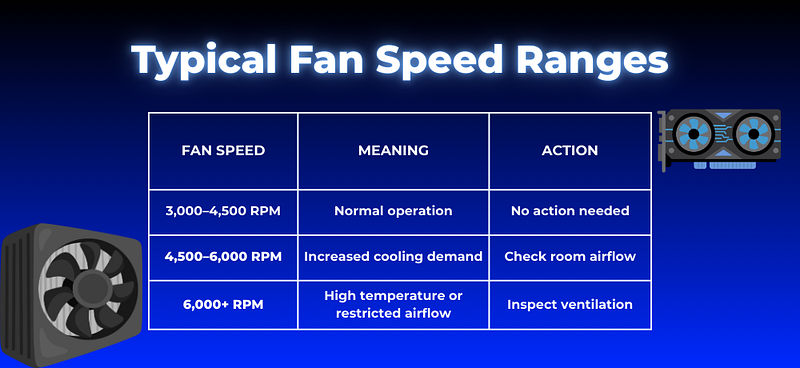
Consistently high fan speeds usually indicate the miner is compensating for heat.
What Miner Temperature Tells You
Temperature shows how efficiently the miner is dissipating heat.
Stable temperatures mean the cooling system and environment are balanced.
Typical operating temperature ranges depend on the miner model, but most ASICs operate safely when chip temperatures remain stable and below thermal throttling limits.
Temperature Health Check
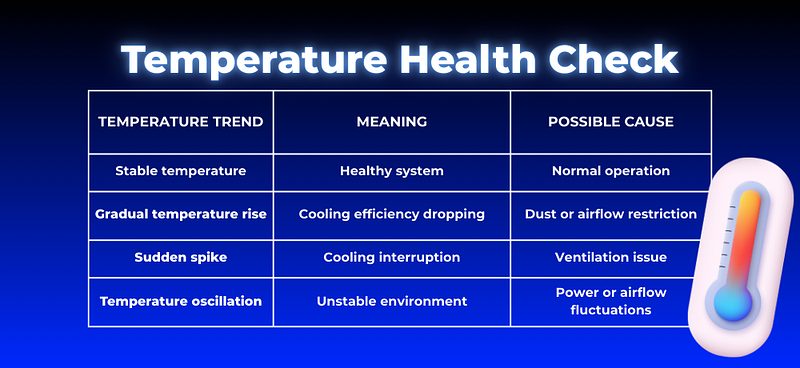
Consistency is more important than the exact number.
Fan Speed + Temperature Together
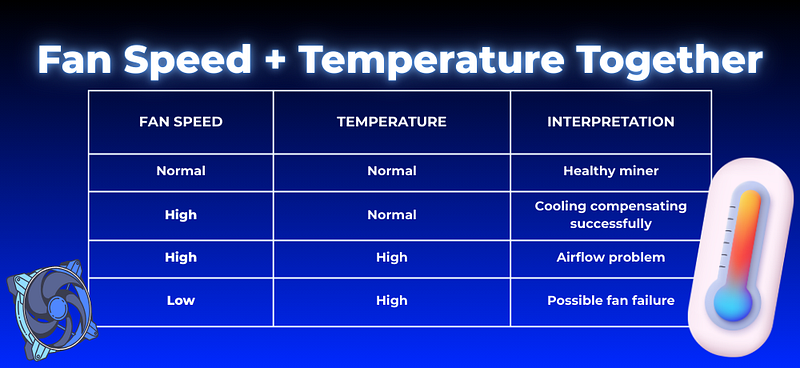
The most useful health signal comes from observing fan speed and temperature together.
These patterns help identify issues early.
Daily Miner Health Check (Simple Routine)
A quick daily check takes less than a minute.
Look for:
✔ Stable fan speeds
✔ Consistent temperatures
✔ No sudden changes in hashrate
✔ No abnormal noise from fans
If something changes suddenly, investigate before the issue escalates.
Early detection prevents larger problems later.
Early Warning Signs to Watch
Many miner issues begin with subtle changes.
Watch for:
- Fans running at maximum speed for long periods
- Gradually rising temperatures
- Reduced hashrate during hot periods
- Unusual vibration or noise from fans
These signals usually appear days or weeks before major performance problems.
Why Environment Matters
Fan speed and temperature are heavily influenced by the environment.
Factors that affect miner health include:
- Room ventilation
- Ambient temperature
- Dust accumulation
- Rack spacing
- Electrical stability
Even well-designed miners perform best in controlled environments.
👉 Learn about IceRiver EU hosting environments:
https://www.iceriver.eu/pages/hosting
Professional hosting facilities are built to maintain stable airflow and temperatures, reducing performance fluctuations.
Simple Maintenance Tips
To keep miners running smoothly:
- Clean intake vents regularly
- Maintain airflow clearance around miners
- Avoid overcrowded racks
- Monitor temperatures during seasonal changes
These simple habits prevent most cooling-related issues.
Why This Matters for Profitability
Mining is a continuous operation.
If a miner overheats or throttles:
- Hashrate drops
- Revenue decreases
- Hardware stress increases
Small performance issues compound over time.
Stable thermal performance means consistent income.
Conclusion
Fan speed and temperature are the simplest indicators of miner health.
By checking them regularly, miners can detect problems early and avoid costly downtime.
At IceRiver EU, long-term mining performance depends on stable operating conditions — because reliable hardware and controlled environments are the foundation of consistent profitability.
Monitoring these two metrics daily is one of the easiest ways to protect your mining investment.
🔗 Stay Connected
📱 Instagram
📘 Facebook
🎥 YouTube
📱 TikTok
📢 Twitter